 AI Kitchen Design Team
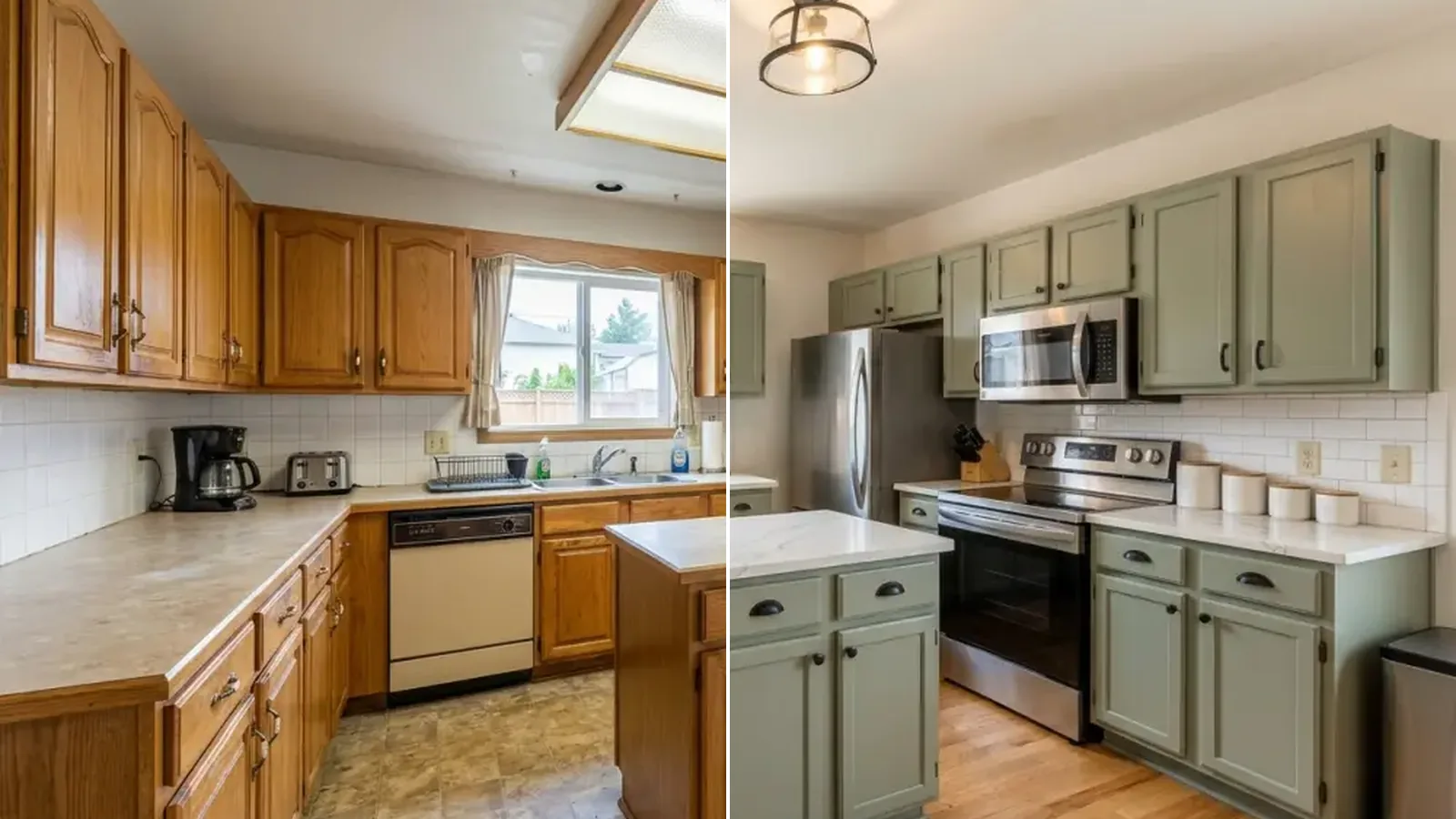
AI Kitchen Design turns one photo of your kitchen into a new design in seconds. Use it to compare styles, cabinet colors, and countertops before you spend money on a remodel.
How to use AI Kitchen Design
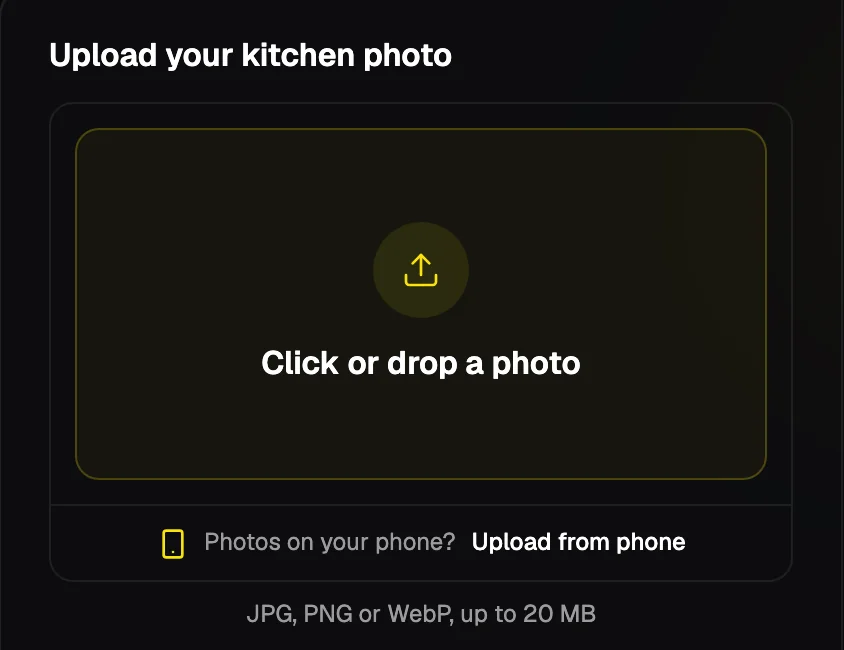
1. Upload your kitchen photo
Upload a JPG, PNG, or WebP photo up to 20 MB. If you're on a computer and the photo is on your phone, scan the QR code to send it straight across.
2. Choose your settings
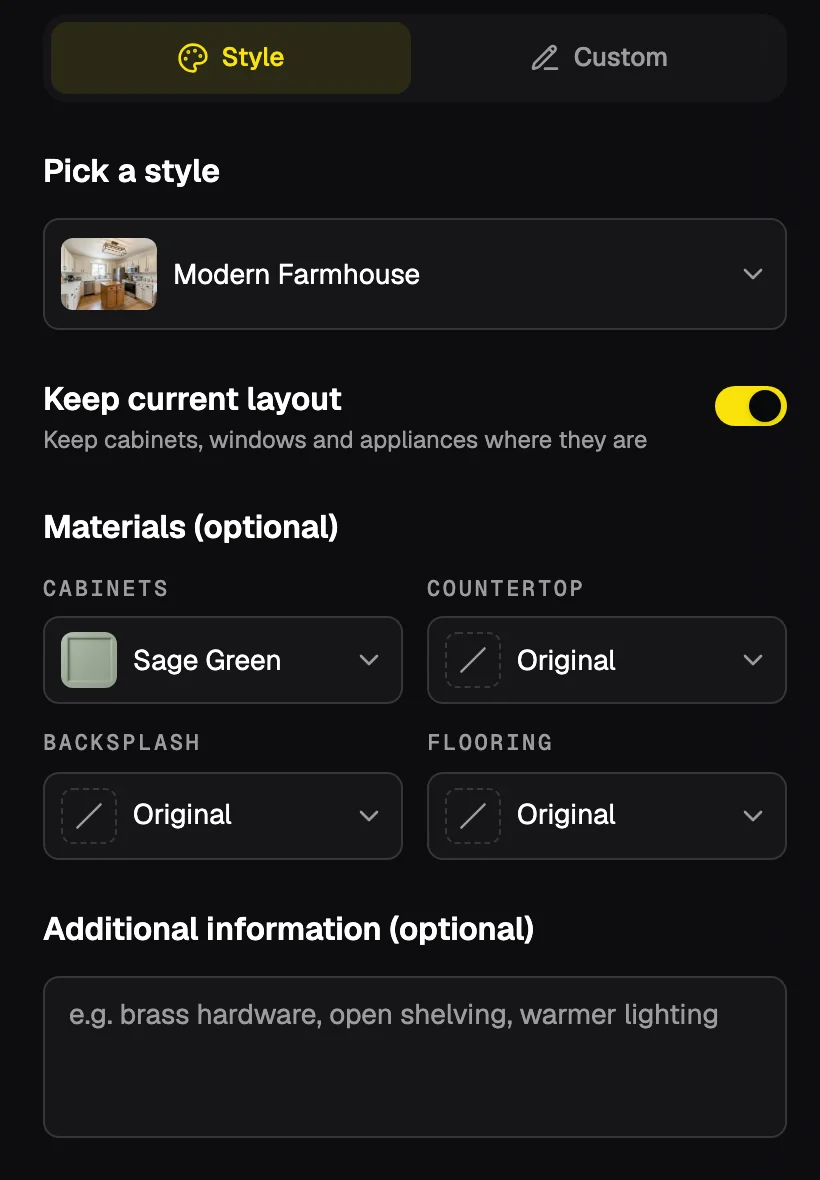
Pick one of 18 preset styles, such as Modern Farmhouse, Japandi, or Coastal, or switch to Custom and describe the kitchen you want in your own words.
With a preset style, Keep current layout is on by default. Your cabinets, island, windows, doors, and appliances stay in place, while finishes, door styles, and light fixtures can change. You can also choose specific cabinets, a countertop, backsplash, and flooring, or add details like "brass hardware" in the notes box.
3. Generate your design
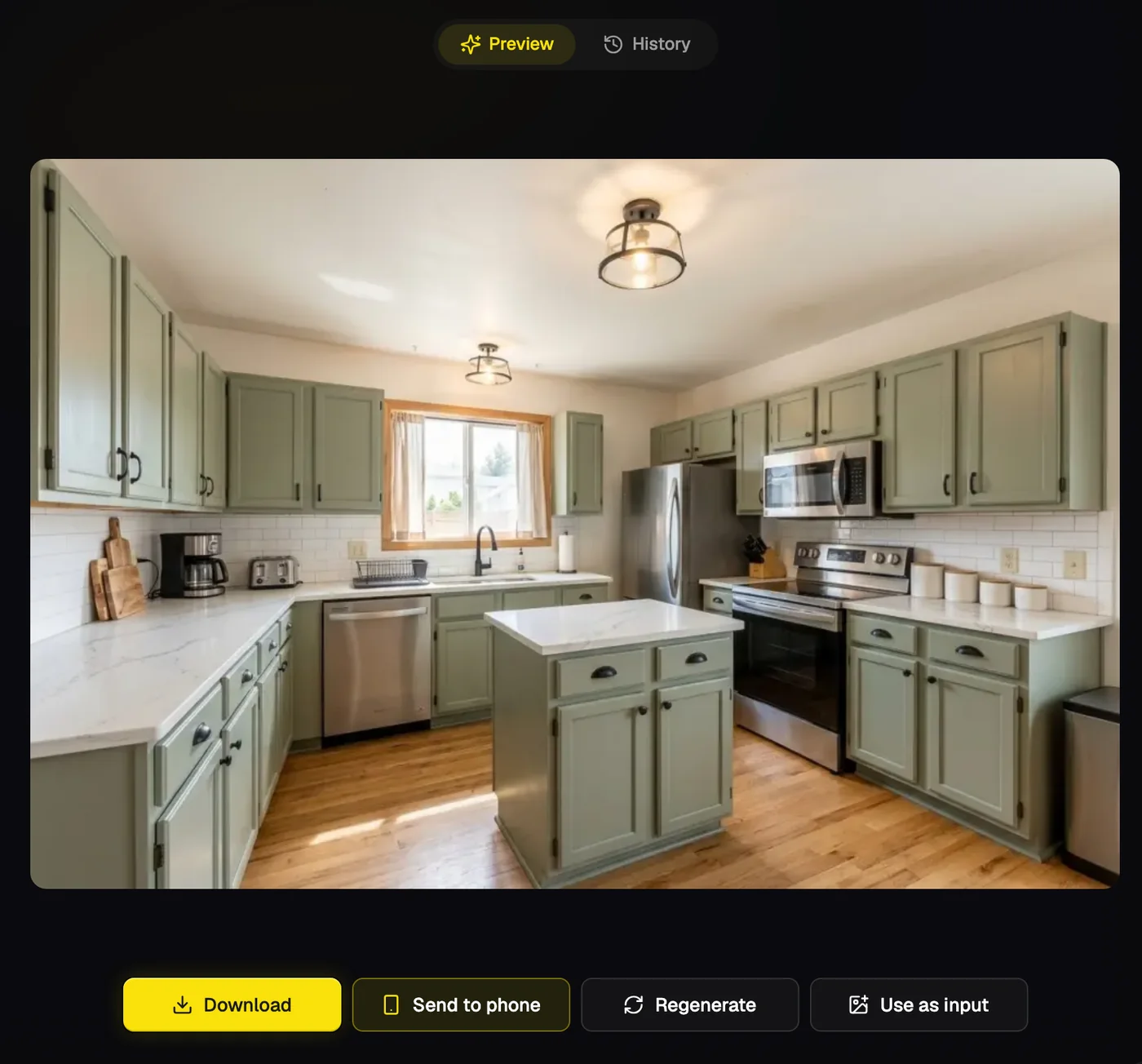
Click Generate. Each design costs 2 credits and is ready in seconds. If a generation fails, your credits are refunded automatically.
4. Download your design
Click Download, or use Send to phone to save it on your phone. Your designs are also saved to your account, so you can come back to them later.
Want to try something else? Click Regenerate for another version with the same settings, or Use as input to keep changing that result.
Tips for better results
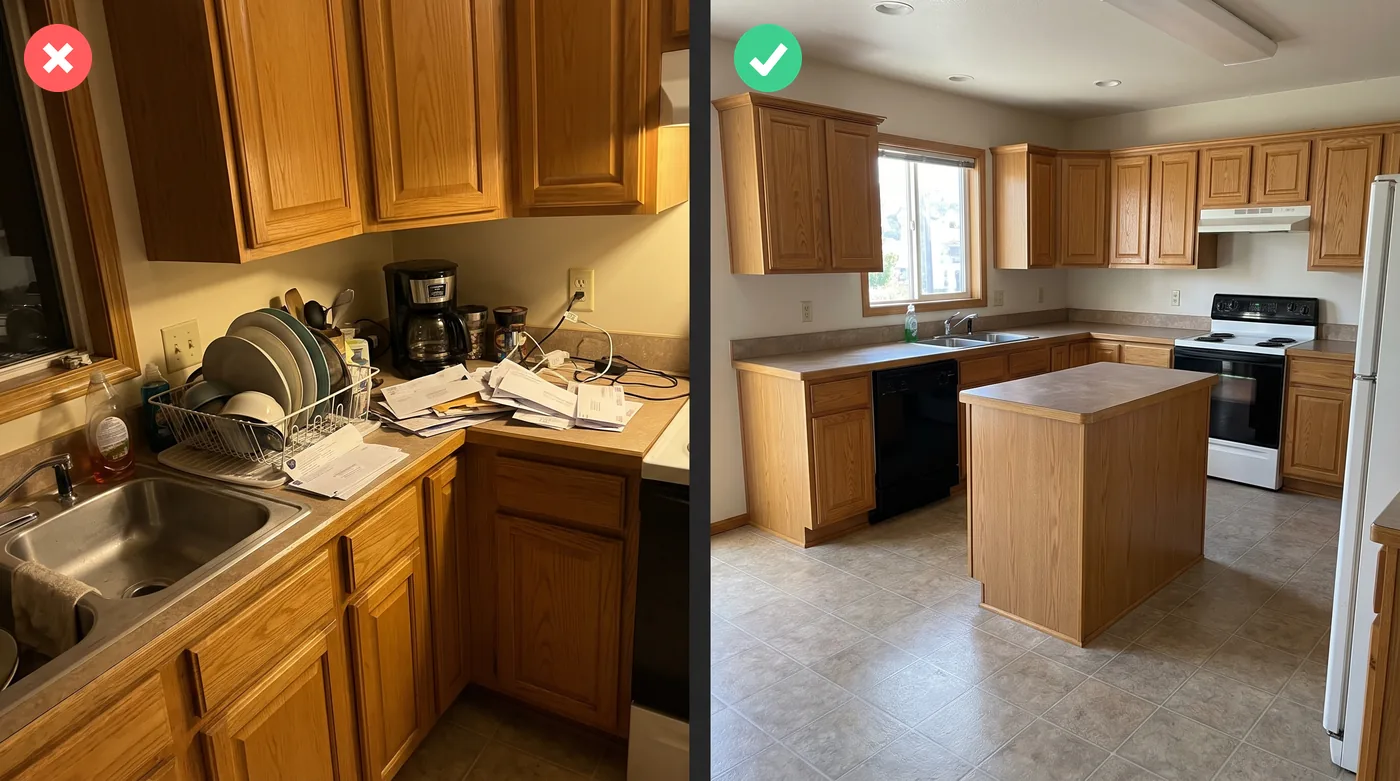
- Take the photo from a corner or doorway in daylight. This helps the AI see the whole room clearly, so it has more to work with and your design can look more realistic.
- Clear your counters before you take the photo. With fewer dish racks and small appliances in the way, the AI can see your kitchen better and give you a cleaner result.
- Try two or three styles on the same photo. A style can look different on your kitchen than it does in the examples, so comparing a few helps you find the one that suits your space.
- Choose whether to keep your current layout. Leave Keep current layout on if you only want a new look, so your cabinets and appliances stay where they are. Turn it off if you want new layout ideas, so the AI can redesign your cabinets and island.
- Keep your notes short and specific. Details like "brass hardware" or "warmer lighting" tell the AI exactly what you want, so you're more likely to get a result you like.
FAQ
Is AI Kitchen Design free?
New accounts get free credits at signup, so you can try it on your own kitchen. After that, you can buy more credits. Downloads have no watermark.
How accurate is AI kitchen design?
AI designs are made for inspiration, so results can vary and may not match your room exactly. They aren't plans, measurements, or professional advice. Have a qualified contractor measure and check your kitchen before you buy or build anything.
Can I preview a specific cabinet color or countertop?
Yes. Pick from the material dropdowns, or describe the exact look in the notes box or in Custom mode. The result is a visual preview, so check real samples before you buy.
Does it work for small or galley kitchens?
You can try it with any clear kitchen photo. In tight spaces, stand as far back as you can to show more of the room.
Can AI replace a kitchen designer?
No. AI helps you explore ideas quickly and show your designer or contractor what you like. You'll still need a professional for measurements, plumbing, electrical work, and building codes.
Start with one photo
Upload a photo, choose a style or describe your own, and generate. Then keep refining until you find a kitchen you love.